|
This dialog lets you edit text in a resizable dialog. Click on the grip symbol in the lower right corner and drag your mouse to resize the dialog.
Example of Drawing Description
Here's an example of editing the properties of a drawing in the Drawing Manager.

You can enter information about the drawing in the Description field, or click the pencil icon to edit the text in this dialog.

Text Properties
When you edit text that can display properties, like font, font size and style, TPC includes those properties at the top of the dialog.
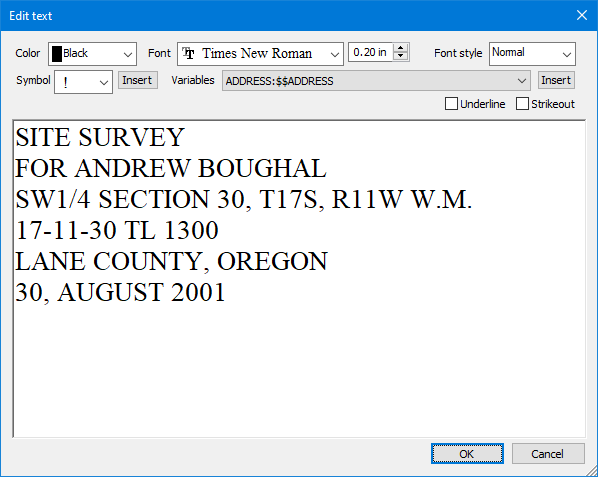
Color
Select the color of your text.
Font
Select the Font, Font size, and Font style (Normal, Italics, Bold, Bold Italics) you wish to use for your text. See Text Objects for more information on sizing text.
Font style
Choose what style you want your text to displayed as. ( Normal, Bold, Italics, etc )
Symbol / Insert
Select a symbol from the list. Symbols are drawn using the font displayed in the Font field. Once selected, a symbol can be inserted into the text with the Insert button.
If you don’t see all your fonts, close the text dialog then choose Tools | Program Settings | Drawing View | Font Settings and change the Character set to ‘Device default’. This setting forces Windows to display the fonts available on your printer or plotter.
Press the Insert button to insert the current symbol into the text at the caret (cursor position). To place a symbol in the text, first left click the mouse at the insert point in the text or use the arrow keys to position the cursor where you want it in the text, then choose Insert.
Variables / Insert
Select a variable from the drop down list. Once selected, a variable can be inserted into the text with the insert button near the variable list.
Press the Insert button to insert the current variable into the text at the caret (cursor position). To place a variable in the text, first left click the mouse at the insert point in the text or use the arrow keys to position the cursor where you want it in the text, then click Insert.
OK
Choose OK to accept the changes and return.
Cancel
Return without accepting any changes.
|

