|
Accessed by choosing the Tools | Program Settings, Support tab.
The Support dialog provides access to information helpful to TPC as we provide technical support for you.
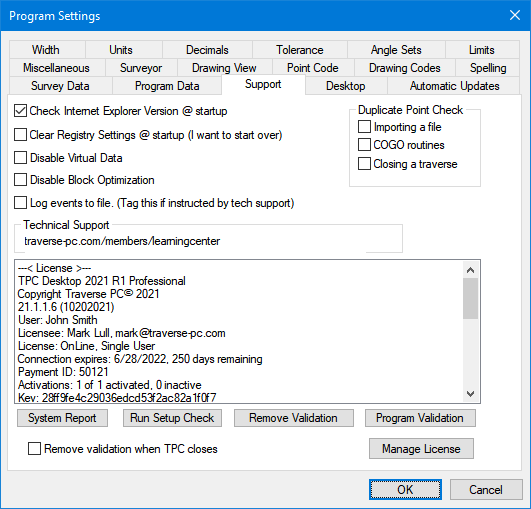
Check Internet Explorer Version @ Startup
The program uses Windows common controls for things like printing and opening a file. The version of the common controls must be the same as any version shipped with IE 4.72 or newer. Turn this option on to check your version of IE. Default=On
Clear Registry Settings @ startup
Turn this option on to reset all the program settings the next time you run TPC.
TPC resets any customizations you have made to the program (layout, menus, toolbars, etc) and reset TPC to the way it was when you installed it. It does this by ignoring the program settings in your computer's registry at startup. Once TPC is up and running, it over-writes the registry with any new customizations you make to the program.
Disable Virtual Data
Disable the virtual data in views that us it, like the Points manager and Traverse View. You will need to exit TPC and re-run for this to take effect.
TPC virtualizes data in these views to make them run faster for large surveys. This technology was introduced to TPC in Version 16.2, September 2016. Disabling virtual data reverts back to the code used prior to this release.
Disable Block Optimization
This is untagged by default. If you're having trouble with how point symbols or blocks are being drawn you can tag this to disable block optimization. You should only tag this if Tech Support says so.
Log events to file
Used only when you are instructed by Traverse PC's Technical Support.
Duplicate Point Check
Turn on these options to check for duplicate points in your survey. TPC always checks for duplicate point when opening an existing survey job. These are just additional ways to initiate the check. If TPC finds any duplicate point labels, they are reported in the Message View.
System Report
Choose this option to create a report of your TPC license and computer. This information is useful for troubleshooting and may be requested by TPC technical support staff.
Run Setup Check
Repeats the setup check TPC performed the first time you ran the program after installing it. You must exit TPC then re-run for this to take effect.
The setup check does the following:
1.Ensures that all Program Data files exist. These include drawing templates, line types, symbols, etc.
2.Looks for Program Data associated with a prior version of TPC Desktop and prompts you to copy it to the proper location, making it available for this version of TPC Desktop.
3.Looks for survey files in \Program Files\TPCW\ and offers to copy them (if it finds any) to the current Survey Data location.
4.Cleans up any unused or obsolete program files.
Remove Validation
Deactivates the license TPC is running under. TPC will continue to run for this session, but the next time you run TPC, you will be asked to activate it. See License Management.
If you are using a single-user license on more than one computer, like an office computer and a field computer, you can use this button to temporarily deactivate the license on one computer while you use the other computer. See Running a Single-User License on Multiple Computers.
TPC remembers you validation information, so re-validating is easy.
Remove Validation when TPC closes
When TPC closes it will deactivate current license, making that activation available to another computer.
This useful when you're sharing a license between two computers. When one of the computers closes TPC, deactivating the license from that computer allows you to run TPC on the other one. No two machines at the same time can run TPC.
For networks, this allows all unused activations of the network license to be available to network users since only those computers currently running TPC use an activation.
If this is turned on when TPC starts, TPC will attempt to silently re-activate the last used license. If successful, TPC will start up and run without any validation interruptions. If you were to check the License Manager at this point, you would see that TPC has used an activation on each of the program and connection licenses.
Grace Period
TPC's grace period requires an active validation to work. If you remove the validation on exit, then try to run TPC off-line (without a network connection) via the grace period, it will not work. So if you plan on utilizing TPC's off-line grace period, do not use this option.
Program Validation
Use this option to validate your program if you have been operating in Demo mode. Call Traverse PC at (800) 460-3002 if you need help with validation or if you wish to purchase the program.
Manage License
Choose this option to access your User and License information stored on-line, where you can renew any subscriptions, access your license keys, downloads and purchase history. See Using the License Manager.
OK
Applies the Program Settings you have selected.
Cancel
Discards any changes made in the Program Settings and returns you to the previous view.
Related Topics
Program Settings
Using the License Manager
|

