|
Volume
There are three ways to compute the volume of a contour (Volumes are not computed until you press Compute).
To Border
This option computes the volume of the surface to its border. TPC creates a temporary surface by triangulating the border points and then reporting the volume to this temporary surface.
To Elevation
This option computes the volume from the surface to the elevation specified.
To Surface
This option computes the volume between this surface and another selected surface. You can use this option to compare phases of an excavation project or compare a design surface with an existing surface.
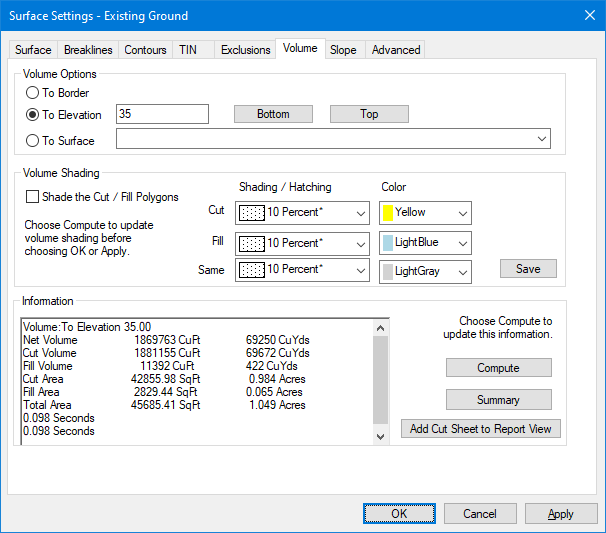
Cut / Fill Polygons
Turn this option on to create filled polygons showing the Cut and Fill areas. The polygons are created when you choose the Compute button.
Cut and Fill
As TPC computes the Net Volume, it also computes the Cut and Fill volumes along with the Cut and Fill areas.
The Cut Volume and Cut Area represent that portion of surface that is above the specified elevation, surface or border.
The Fill Volume and Fill Area represent that portion of the surface that is below the specified elevation, surface or border. Fill volumes are always displayed as negative.
Net Volume is the difference between the Cut Volume and the Fill Volume. A negative Net Volume means there is more Fill than Cut.
Cut Sheet
Choose this button to generate a Cut Sheet report.
Compute
Choose this button to compute the volume using the current selections.
Including Volume in a Report
To add the volume information to the current Report, choose Summary.
[[ Contour – contour name]]
[ Volume: To Elevation 5.00 ]
Net Volume: 58497 CuFt 2167 CuYds
Cut Volume: 142358 CuFt 5273 CuYds
Fill Volume: -83862 CuFt -3106 CuYds
Cut Area: 49429.79 SqFt 1.13 Acres
Fill Area: 40424.13 SqFt 0.93 Acres
Locked Surfaces
You may get warnings that your surface is locked, and your data is reverted to what it was originally.
Click here for more info about surface locking and how to change it.
Related Topics
Surface Volume
Editions
Premium, Professional
|

