|
If you are a company that uses multiple copies of TPC, it is very likely that you will want to share your program data so everyone uses the same drawing templates, rich text boiler plate, user line types, etc.
This is accessed by choosing the Tools | Program Settings, Program Data tab.

One Drive Example
TPC supports mapped network drives, OneDrive, and other file storage providers.
If you want your main/default program data folder to access a shared location, simply browse or enter the path to your shared folder in the topmost input box in the Program Settings dialog and click OK.
In the example shown here, the
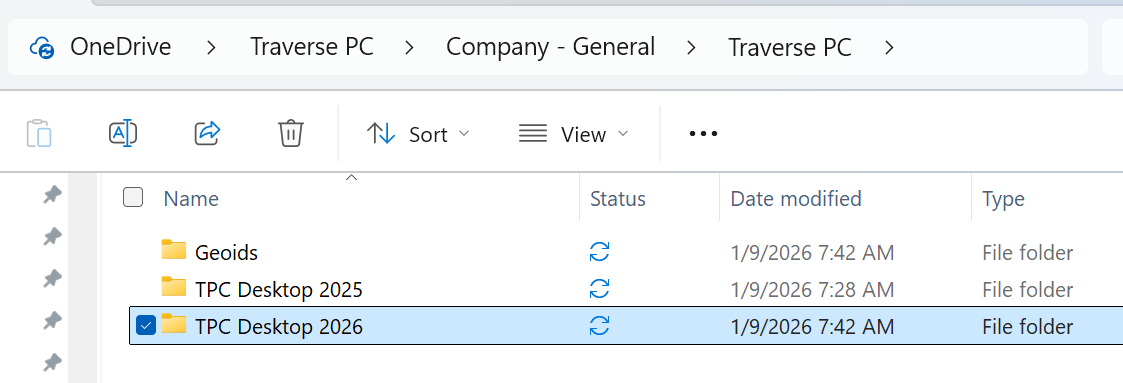
This path is then copied into the Program Data dialog as shown

NOTE: If it asks you to copy from the old program data folder, we suggest selecting yes. That way you will have your Geoids folder copied over if it is available/installed.
Shared Program Data Folder (Optional) - From Program Data Dialog
This optional folder provides an alternate location in which TPC can search for program data. TPC does not expose this folder directly but uses it internally to resolve some unresolved references in program data. It is not generally involved in sharing Program Data.
Using Mapped Network Drives
As mentioned in the Program Settings - Program Data Dialog topic, mapped drives can be very slow to read and write to.
If you are using a mapped network drive, you could experience quite a bit of slowdown when starting TPC and whenever you read and write to the drive in TPC.
A better and more performant solution to this, if possible, is to use Microsoft's OneDrive sync functionality which places the synced folder inside your C: drive (by default).
If you are using a different cloud solution, try to use their sync functionality when possible for best results.
Related Topics
Program Settings
|

