|
Each drawing is made up of drawing objects. Even the traverses that Drawing View draws are made of individual drawing objects.
Drawing objects can be edited, hidden, moved, deleted, and reset. Different drawing objects have different properties. To edit any object, just select it and right click. Here's how:
What are Drawing Objects
If you are familiar with CAD, you can think of drawing objects as entities. They are lines, circles, rectangles, polylines, text, etc. with properties like size, color, line type, font type, etc.
When you are all finished with a drawing, everything you see in the drawing is a drawing object of one kind or another.
Because TPC works with CAD, it helps to think of Drawing Objects as belonging to TPC's drawings and entities a belonging to CAD drawings.
Creating Drawing Objects
You will use Quick View™ to create most of the objects in your drawings - like contours, lots, legends and tables. But you can also draw any additional objects you need like text and leaders.
See Creating Drawing Objects.
Hitting Objects
In order to move or edit an object, you need to identify the object you want. Drawing View does this automatically when you move the cursor over an object.
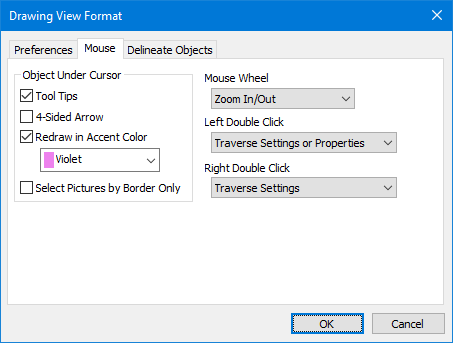
TPC gives you several options for identifying the object the cursor is over. To select the option you want, choose View | Format View in Drawing View and left click the Mouse tab.
We recommend combining the Tooltip and Accent options.
A tick mark (+) indicates the cursor is over the survey. You can now drag the survey to a new location on the page.
Selecting Objects
Many operations, like move and delete, can operate on a group of selected objects as well as individual objects. See Selecting Objects.
Moving Objects
You can move any object anywhere on the page by dragging it with the mouse. See Moving Objects.
Editing Objects
You can edit any object by right clicking it and choosing Properties. See Editing Objects.
Erasing Objects
You can erase any object that is not drawn by a traverse. See Erasing Objects.
Survey Objects
TPC does not allow you to modify survey lines with commands like break, trim, or extend. You must modify the line in the traverse that created it.
Hiding Objects
Objects can be hidden so that they don't show up on the drawing. See Hiding Objects.
Copying Objects
You can copy a single object or multiple objects within a drawing. Copies are inserted next to the original object(s) and can be moved and modified without affecting the originals. See Copying Objects.
Labeling Objects
You can label line and arcs using the same labels TPC uses for traverses. See Labeling Objects.
Dimensioning Objects
You can add a dimension line and label to drawing objects like arcs and lines. See Inserting Dimensions.
Interior Angles
You can draw and label the interior angle created by two lines sharing the same end point (vertex). See Inserting Interior Angles.
Aligning Objects
You can align a group of selected objects left, right, top or bottom. See Aligning Objects.
Spacing Objects
You can evenly space the individual objects within a group of selected objects so that there is an equal amount of space between each object See Spacing Objects.
Trimming Objects
Some objects can be trimmed (truncated) to another object. See Trimming Objects.
Extending Objects
Some objects can be extended to another object. See Extending Objects.
Related Topics
Drawing Objects
Creating Drawing Objects
Editions
Personal, Premium, Professional
|

