|
The License Activation dialog is displayed when you start a copy of TPC that has not been activated.
You can also access it through Help, License Activation....
Any time you see this dialog, you can enter the license information needed to validate TPC.

Your Name
Enter your name. The name you enter here is stored on-line with this license activation and helps to identify the activation as yours.
Activation Key
Enter the key provided for the version and edition of TPC Desktop that you purchased. As a rule, you will want to copy it from your purchase receipt. However, you can also access it by choosing Manage License and locating this license on the Licenses tab.
Stand-Along licenses are not available on-line. TPC will provide the validation key and serial number to you in another form.
Activate
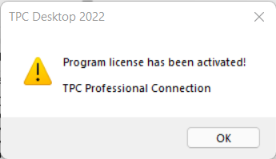
Select Activate to start the activation process. TPC will tell you whether or not it is successful.
If successful, the validation will use one of the available activation for the license.
If no activations are left (i.e. it is being used on another computer), TPC will display the number of activations being used and tell you there are none left. You can deactivate any license you are using on any computer and free that activation up to be used on this computer. See License Manager, How To tab and scroll down to the section "Running a single user license on more than one computer".
Deactivate
If TPC is already activated, the Activate button changes to Deactivate.
Select Deactivate to remove an activation for this activation key. That activation can then be used on another computer.
Cancel
Select Cancel if you do not wish to complete the validation.
Status
TPC displays information about the validation process in the Status window. If validation is not successful, you can choose Copy Status to place a copy of the status information on the Windows clipboard. Paste this information into an email to tech@traverse-pc.com. In some cases, Traverse PC can issue you a license directly from this information.
License Manager
Choose this option to access your User and License information stored on-line, where you can renew any subscriptions, access your license keys, downloads and purchase history.
Serial Number
For most licenses, a serial number is not required, so you will not see this option in the dialog. If the license you purchased does require a serial number, TPC will display it in this dialog after you enter your validation key.
All TPC serial numbers are 6 digits long.
Related Topics
TPC Licenses
Using the License Manager
Validating Your License
Editions
|

