|
When you add an object to a drawing, the Drawing View adds the object to the drawing’s current layer. Only one layer at a time can be the current layer. To put the object on a specific layer, you can draw or insert the object and then change it’s layer or change the current layer to the specific layer you want and then draw or insert the object.
There are three ways to change the current layer 1) using the Layers dialog, 2) right-clicking an object or, 3) using the Layers toolbar.
Using the Layers Dialog
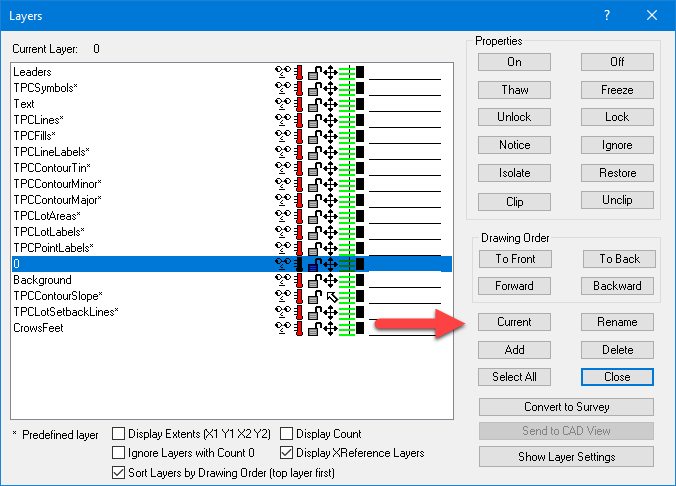
•Choose Tools | Layers or right-click any blank spot on the drawing and choose Layers from the pop-up menu.
•Highlight a layer and choose Current. TPC will display the name of the layer you selected above the list of layers.
•Choose Close to exit the Layers dialog.
Right-clicking an Object
•Right-click any object on the layer you want to be the current layer. Hint: When you position the cursor over an object, its layer is displayed in the status bar.
•From the pop-up menu, choose Layer Tools | Modify Layer | Current. TPC will set the current layer to the object’s layer.
Using the Layers Toolbar
•Expand the list of layers and select the layer you want to be the current layer.
Regardless of which method you use to change the current layer, if the Layers toolbar is turned on, it will display the current layer.
Related Topics
Layers
Drawings
Drawing View
Editions
Personal, Premium, Professional
|

