|
If you have the Personal Edition of TPC Desktop, you don’t have the Point Codes Manager and tools available to you. That doesn’t mean that you can’t use “Point Codes” to create your drawing, it just means that you will have to create each feature traverse manually. This topic shows you how.
•Follow all the steps in this chapter up through Using the Points Manager to Evaluate Field Codes.
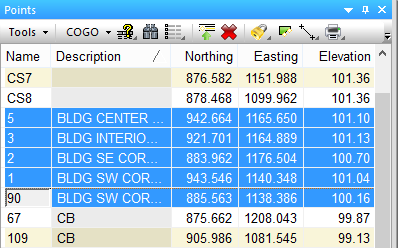
•With the points sorted by Description in the Points Manager, select the BLDG points as shown here.

We could now choose Tools | Add Selected Points to Traverse to create a new traverse for the building. But there is a problem with that. Notice that we have selected 5 BLDG points. The problem is that we shot 6 BLDG points in the field and there is a 6th point in the file but we don’t see it here. Let’s try a different method.
•Go to the Traverses Manager and choose Tools | Insert New Traverse | Append to End.
•Set the New Traverse dialog box settings as shown here and choose OK.
•In the Office Traverse View, choose Edit | Insert Existing Points…
•Make sure Matching Points is selected and choose OK.
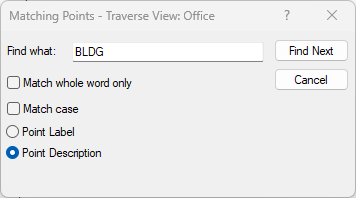
•In the Matching Points dialog box enter BLDG in the Find what field and select Point Description.

•Choose Find Next and then OK when TPC tells you it found 6 points.
•Close the Matching Points dialog by clicking the X in the upper right corner.
Related Topics
Point Codes
Editions
Premium, Professional
|

