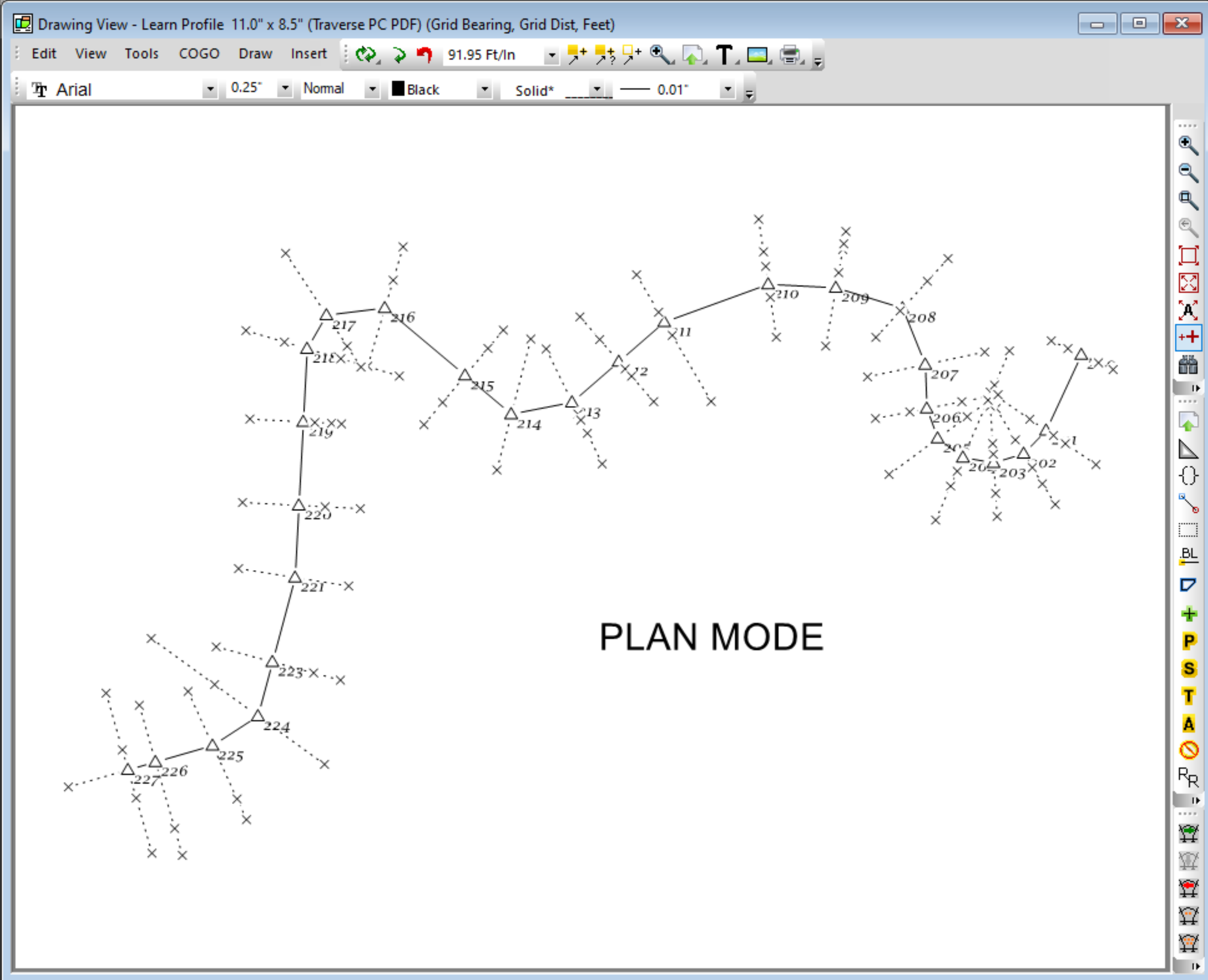
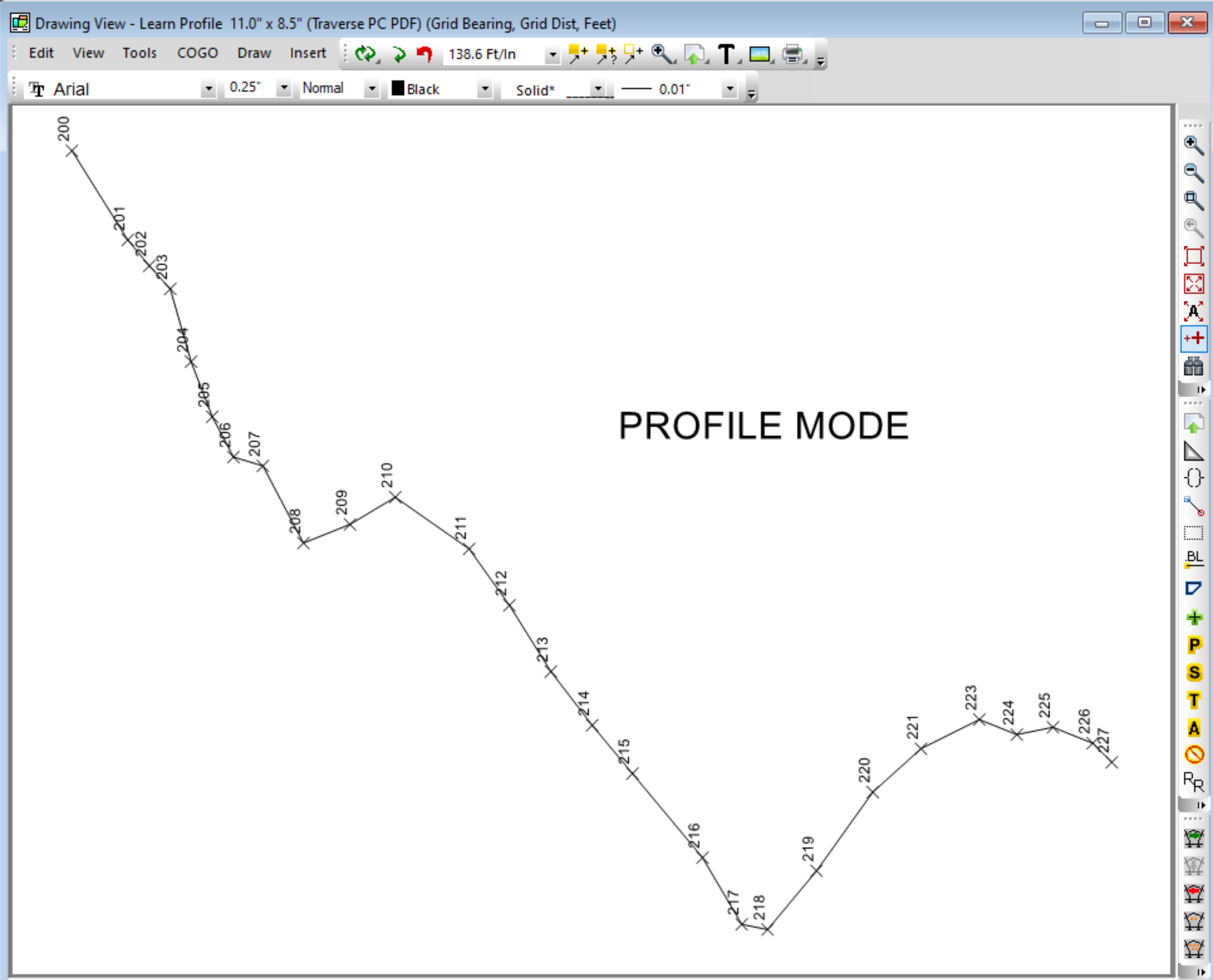
TPC can view your survey in Plan mode or Profile mode. To view a profile, you must be in Profile Mode.
Changing to Profile Mode
1.Left-click the Drawing View to make it active. The Drawing View is currently in Plan mode. You see the P-Line and the cross sections at each P-Line station. Plan mode looks at the survey from above.
2.Choose View | Profile Mode.
3.Choose View | Zoom | Zoom Extents. You should see the Profile View of the P-Line traverse. The Profile View looks at the survey from the side.
4.To switch back to Plan View, choose View | Profile Mode again to turn off the check mark and return to Plan View. You will also need to do Zoom Extents.
Note: Your Plan and Profile Views may look different than those shown based on your program settings. Choose Tools | Drawing Settings to change how it is displayed.
Why Zoom Extents
When you switch between Plan View and Profile View you need to execute the Zoom Extents command because the values used to compute the drawing extents change. In Plan View, the northing and easting values determine the drawing extents. In Profile View, the stationing and elevations determine the extents.