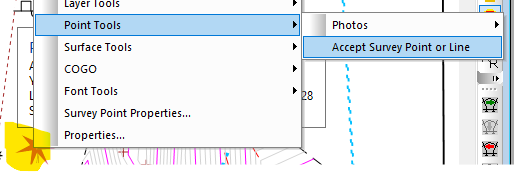
Beginning with TPC Desktop 2025, TPC allows you to reject or accept survey points and their associated survey lines.
Reject Points Sneak Peek (3:11) - Here's a sneak peek at rejecting survey points, a new feature in TPC 2025.
Why Reject Survey Points?
Prior to this release, you could reject raw data from GNSS averages and Least Squares analysis. Rejecting the whole survey point furthers this functionality, essentially treating that point like it wasn't in the survey.
In the example shown here,
•points f4 and h4 are GNSS Float observations for point 4, a found iron pipe. Their RMS and PDOP values were high
•extra effort was made to get a Fix (shown by point g4), which was eventually held when the record data was calibrated to the GNSS fount monuments
•f4 and h4 are no longer needed, and so, can be rejected, leaving them in the survey, available for comparison and learning about GNSS Floats
What Happens to Rejected Points?
When you reject a point, TPC keeps it in the survey, but doesn't include it in the survey's computations and deliverables. You can think of it as being archived. It is still there, but not used. If you do want to include it again, you just Accept it.
Rejected points are excluded from
•Surfaces, Legal Descriptions, Drawings (plan and profile), Traverse Report, GNSS Averaging, Least Squares
•Traverse closure computations if the rejected points is part of the control point chain. Their positions are still computed in a traverse if they have raw data.
Reject / Accept Point Commands
You can select the points you want to reject or accept in the Points Manager, a Traverse View or the Drawing View and use the Reject Point / Accept Point commands.
When you reject a survey point, any survey line that uses that point must also be rejected. This will be most obvious in a drawing when you reject a survey point and the lines being drawn in and out of it are also rejected.
Because each survey line has two survey points, if either one of those is rejected, the line is rejected.
Survey lines are not displayed in any view, so you will not see them displayed with a red strikeout font.
If you accept a survey point, the rejected lines will show back up in the drawings if both ends of that line have accepted survey points.