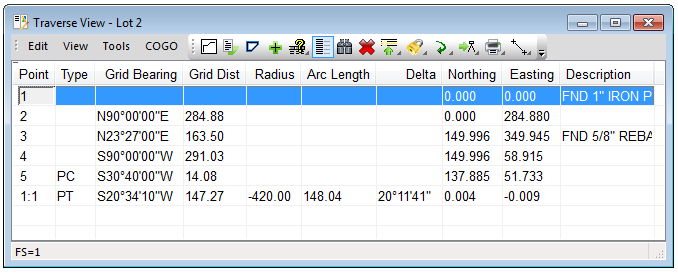
The Single Row option allows you to display more data in a smaller space on the screen. Without this option turned on, the Traverse View has more of the appearance of the typical field book.
Single Row option on
With the Single Row option turned on, each point takes up one line in the Traverse View. The data on each line is the data that created that point. (The Grid Bearing and Grid Dist on the Point 2 line is the Grid Bearing and Grid Dist that was shot from Point 1 to Point 2.) Depending on the Description Width entered, there may not be enough room to display all of the Description.
Single Row option off
With the Single Row per Point option turned off, each point takes up two lines in the Traverse View to mimic the field book. The data above each point number is the data that created that point. (The Grid Bearing and Grid Dist above Point 2 is the Grid Bearing and Grid Dist that was shot from Point 1 to Point 2.) Because two lines are available for each point, more of the Description can be displayed with less Description Width.
Note that the Single Row option can also be turned on or off in the Traverse View by toggling the Single Row per Point option in the View menu.