|
TPC displays this dialog when it finds that a file you are using is associated with a calibration currently being used by the survey.
TPC tells you that this calibration is currently being used and ask if you want to Calibrate entities with the associated calibration?
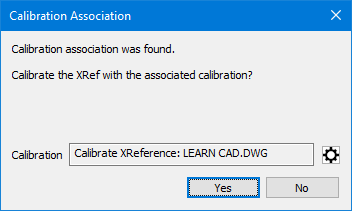
Calibration
TPC lists the name of the calibration that contains the association to this file. Click the settings button to right of the calibration name to view more of its properties.
Don't show this message again
When this message is turned off, TPC will prompt you each time it encounters a command that can use this calibration.
When this message is turned on, TPC will not prompt you each time it encounters a command that can use this calibration. Instead, it will calibrate or not calibrate based on your settings.
To overwrite this settings, from the CAD View choose View, Show calibration associations...
OK / Cancel
If TPC displays this dialog while running a command, it will display Yes and Cancel buttons.
Choose OK to use this calibration to complete the command you started.
Choose Cancel to complete the command you started without using this calibration.
Yes / No
When you access this dialog from the CAD View via View, Show calibration associations..., TPC displays Yes and No buttons.
Choose Yes to use the calibration on future commands for this file.
Choose No to NOT use the calibration on future commands for this file.
You can also change [ ] Don't show this message again which determines whether or not future commands that could use this calibration prompt you to do so.
Related Topics
Calibrating Data
CAD View
Sending Entities From the CAD View To the Drawing View
Sending Objects From Drawing View To the CAD View
Editions
Premium, Professional
|

