|
User Collaboration encompasses ways you can work with others inside TPC. It's like having traffic signals and street signs so that traffic flows smoothly.
This topic discusses issues related to working with others inside TPC and the tools that are built in to help you.
Program Data Folder
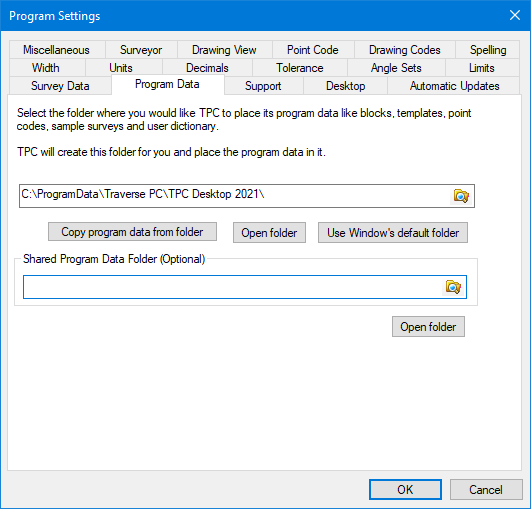
TPC stores all of its program data (data that can be customized by the user) in a default folder that varies according to your operating system. Both the Setup wizard and the Program Data dialog inside TPC allow you to select a new location for this folder.
TPC will even look for older versions of TPC on a computer and prompt you to copy your existing program data to this folder so it can be reused in the current version. When copying program data from older versions, TPC creates first copies all of the data from the most recent version of TPC, then supplies any program data files for the new version that were not found in the most recent version.
To change the Program Folder, choose Tools | Program Settings | Program Data. TPC displays the Program Data dialog.
User Data Files
You can provide standard formats and settings to your enterprise by editing the User*.dat file TPC creates in the program data folder. These files can be edited to your specifications, then distributed to all TPC users. Everyone will now have the appropriate traverse formats, ellipses, line types, symbols, traverse drawing settings, traverse formats, etc.
My Surveys
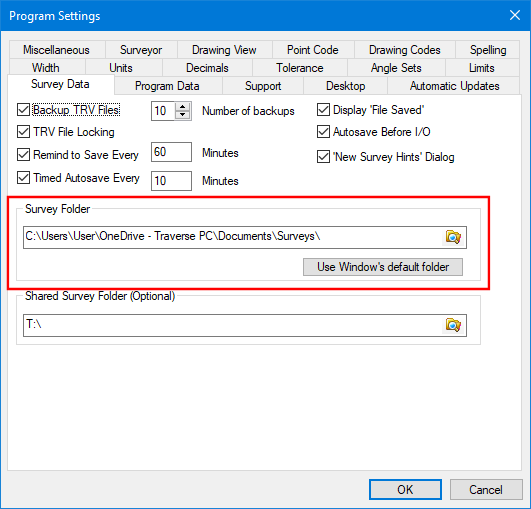
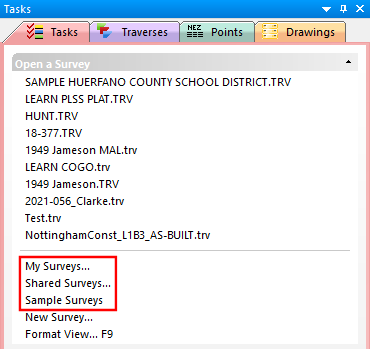
The Survey Folder specifies the parent folder for your surveys. You can put all your surveys in the one Surveys Folder or you can create appropriate sub-folders for clients or jobs. When you tell TPC you want to open an existing survey, it looks in this folder. This location is displayed as 'My Surveys..." in the Tasks manager.
To change the Survey Folder, choose Tools | Program Settings | Survey Data. TPC displays the Survey Files dialog.
Shared Surveys
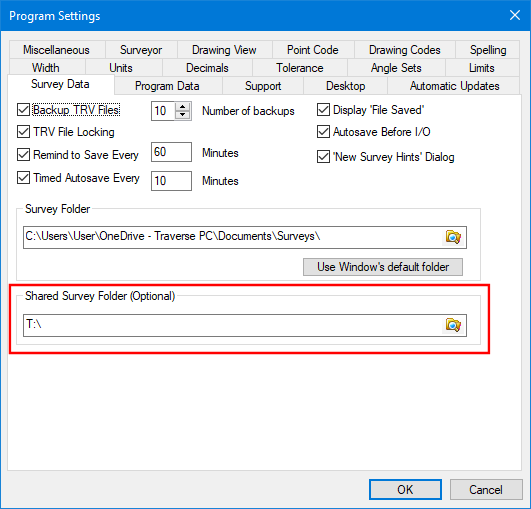
TPC provides direct access to an additional survey file folder called Shared Surveys. If you are working on a network, this would be a good place to specify that network folder location.
To change the Survey Folder, choose Tools | Program Settings | Survey Data. TPC displays the Survey Files dialog.
Sample Surveys
TPC also provides direct access in the Tasks manager to the sample surveys that are installed with TPC. These surveys are located in the \Samples\ sub-folder located in the program data folder. These samples are available to all uses of the computer. Their file attributes are set to 'read only' so that they can not be modified.
You will find all of the surveys referenced by the Learning Guides in this folder.
File Locking
File locking lets you tell others that you are working on a survey file. If someone else tries to open the locked file you are working on, TPC tells them it is locked and forces them to explicitly 'un-lock' the file before they can use it. So the idea of file locking is to completely restrict others from accessing the file, but to keep people from inadvertently overwriting each others surveys.
Related Topics
Program Settings
Program Data
Working With Survey Files
|

