|
Profile Settings are very similar to the Plan View settings you reviewed in the Using the Drawing View chapter of the Drawing Learning Guide.
•You need to be in Profile Mode for this next step. Pull down the View menu in the Drawing View and make sure Profile Mode is checked.
•Choose Tools | Drawing Settings to display these dialogs.
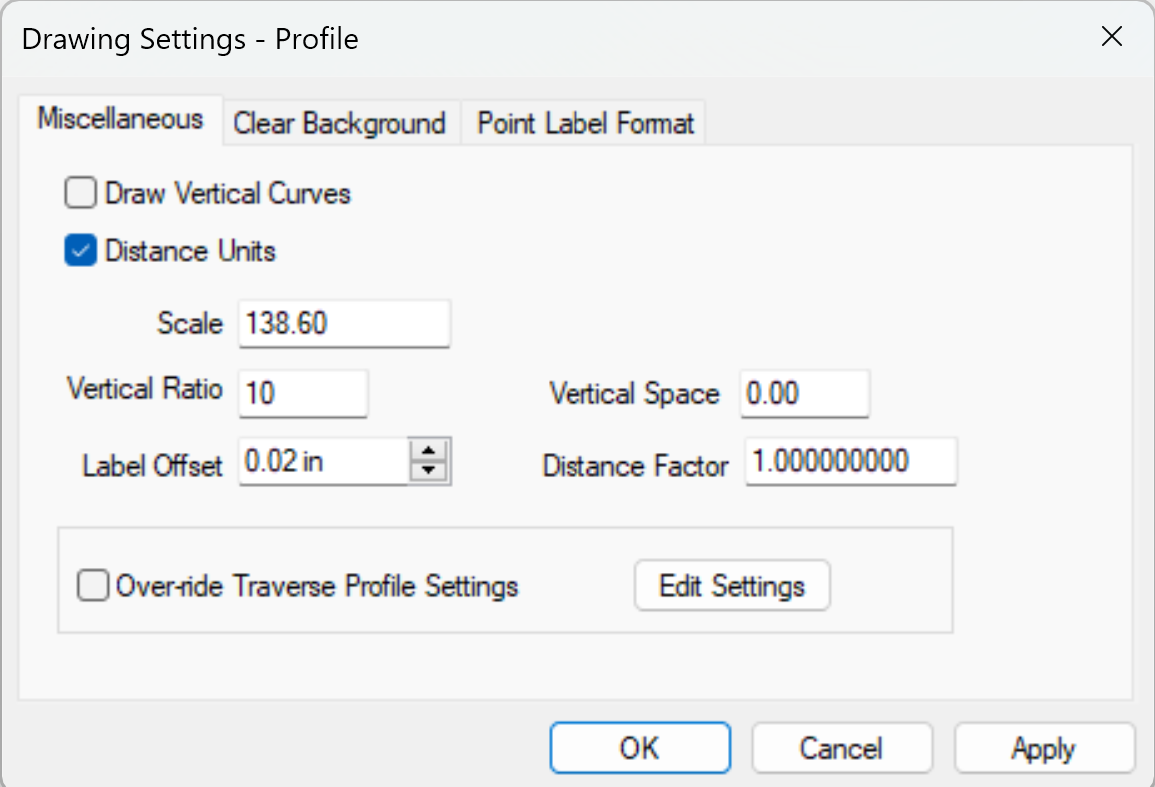
Vertical Ratio
The Vertical Ratio allows you to exaggerate the vertical scale. Profiles typically use a vertical ratio of 10.
Draw Vertical Curves
Toggle this option on, to draw and label any vertical curves included in the profile.
Drawing Settings vs. Traverse Settings
As with Plan View, you can control all the profiles using the Drawing Settings or turn off Over-ride Traverse Profiles Settings on the Drawing Settings – Profile Miscellaneous tab and let each traverse draw its own profile. The Using the Drawing View chapter contains a complete discussion of Drawing Settings vs. Traverse Settings.
•Choose OK to close the dialog.
Formatting Profile Point Labels
You can format profile point labels to include information like station, elevation, etc.

Related Topics
Profiles
Stations and Offsets
Editions
Professional
|

