|
By default, TPC adds a border to each new drawing because the border has been included in the default drawing template. The border is a special object in that its size is tied to the page size and margins. If you change from a B-size drawing to a C-size drawing, the border changes automatically.
•To add a border, choose Insert | Border.
•To remove a border, right click the border and choose Delete.
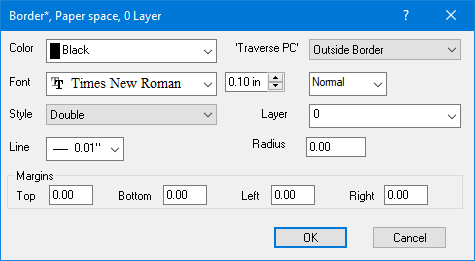
•To edit the border style, color, or width right click the border and choose Properties.
•To change the size of the border, choose Tools | Print | Page Setup and edit the margins.
•To preview the border as it will appear on the printed page, choose Tools | Print | Print Preview.
•To offset from the border from the top, bottom, or sides of the page, right click the border and choose Properties, then edit the offset values.
Traverse PC Signature
TPC draws a ‘Traverse PC’ signature in the lower-left hand corner of each drawing. This signature is positioned relative to the border. If the border corners are rounded, the signature is moved inward to accommodate the rounded corners. The position of the signature, inside or outside of the border, is optional. To select an option.
•Right click the border and choose Properties.
•From the ‘Traverse PC’ pulldown list, choose Inside Border or Outside Border.
Related Topics
Adding a Grid
Legends
Adding a Scale Bar
Adding a Title Block
Editions
Personal, Premium, Professional
|

