Title Blocks and Variables (3:04) - In TPC, Title Blocks are Smart Drawing Objects, they get their data from the survey by using variables
To add a title block
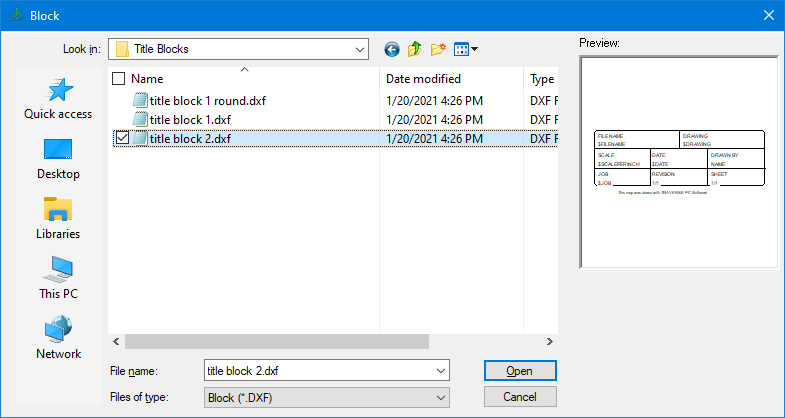
•Choose Insert | Blocks and open the Title Blocks folder to display the available title blocks.
•Double click the one you want. TPC will draw the title block at the current mouse position. The one shown here is TITLE BLOCK 1 ROUND.DXF.
•Drag the title block into position and click the left mouse button.
Some of the objects in the title block, like the survey filename, date, job, and scale are inserted into the title block automatically. Other objects like revision and sheet can be edited as needed. However, before you can edit the information in the title block, you will need to convert it to a group. This is because the Title Block is inserted into the drawing as a Block. Blocks do not allow you to edit their individual objects. In a CAD program, you would Explode the block then edit the individual entities then recreate the block. In TPC Desktop, you just convert the block to a Group, then edit the individual objects in the group as needed.
•To move the Title Block to a new location, move the cursor over it, press the left mouse button, drag it to the new location, and then release the mouse button.
•To convert the Title Block to a group, position the cursor over any part of the title block, right-click and choose Convert to Group.
•To edit the information in the title block, position the cursor over the object you want to edit, right-click and choose Properties.
Some editions of TPC Desktop, like Professional, have tools to create and use your own title blocks.