|
This dialog is used for line, curve, lot and point tables.
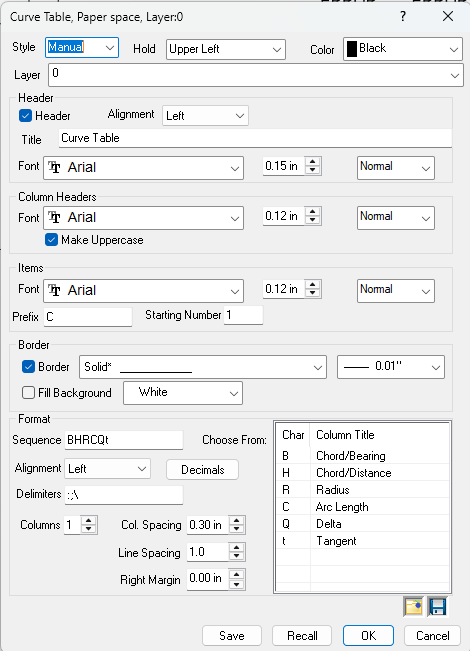
Style
The following styles affect how TPC decides which drawing objects belong in the table.
Auto (available only for the line table) - include only those line labels that won't fit on the line.
Manual - you must manually include an associated drawing object label in its appropriate table by right clicking the label and choosing Append to Table. To remove the item from the table, right click the table item and choose Remove from Table.
All - places all associated annotations in the appropriate table.
Hold
Select a corner of the table to hold (anchor to the page). When the table expands or contracts as items are added to or removed from the table, the hold corner remains fixed.
As a rule, you will want to select the hold corner that is nearest to a page corner.So if you place the table in the upper right corner of the page, you will want to hold the upper right corner of the table.
Color
Select the color of the text and border. The fill background can be selected separately in the Border group.
Layer
Select a layer to put the table on. The default layer is 0 (zero).
Header
These properties affect the table name that TPC places at the top of the table. If you have more than one table in your drawing, they are easier to refer to if they are labeled with a header.
Header
Turn this option on to include the table name at the top of the table. If you don't want a header or want to provide your own header text, just turn this off.
Font / Height / Style
These properties affect only the table header text.
Alignment
You can align the header horizontally above the table. The width TPC uses to align the header is the same width you see if you turn on the border.
Title
Enter the header title you would like to use for the table. TPC starts with a default, generic title, such as Line Table or Curve Table, but you can change this to whatever you want.
Column Headers
TPC lets you control the font used for the table's column headings. By default, column headers use the same font, height and style as the table items.
Font / Height / Style
These properties affect only the column header text like Bearing and Distance.
Items
These properties affect the table items and are discussed in more detail in Table Items.
Font / Style
Sets the character Font, size, and Style for the table item text. See Text Objects for more information on sizing text.
Prefix
Each table can and should have its own, unique, prefix that it uses to label the table items.
Starting Number
Starting in TPC 2022 R1.
Enter the number you want table items to start with (default = 1).
Border
The properties in this group affect the border, line under the header and background fill used for the legend.
TPC always draws a line under the table header unless you select None from the drop down list.
Draw Border
Turns this option on to draw a border around the table. You must also select a line type from the pulldown list.
Note: If you turn this option on and select None as the line type, TPC will not draw the border.
Fill Background
Turn this option on to fill the table background with the selected color.
The table background can be used to clear the background behind the table, but not not work the same as the Clear Background options. TPC fills the background of the table with the color you select, regardless of whether or not it matches the drawing's background color. If your drawing background is White and you just want to clear the table background, set the table background color to White also.
Format
Specify the information to include in the table and the order in which to display it. You do not need to specify the first table column which is always the label reference (L1, L2, C1, C2, etc).
Sequence / Choose From:
Enter the sequence of data you want for the table, using the letters in the Choose From: box.
Alignment
Select the alignment you want for column header text and table item text.
TPC does not include an option for decimal alignment, but you can achieve this for distance columns by using a fixed space font like Courier.
Decimals
Specify the number of decimals used for table data.
Delimiters
Specify the characters that will separate any data you add to the table from the computed table data. If you edit a table item, you can append any one of these delimiters to the item data, then enter your own.
For example, in the following data “124.56,345.3030/124.5/345.3” the slash character ‘/’ is used to separate the record distance and bearing from the item data.
Columns
You can specify more than one column if you have a table that is too long to fit on the page.
Just set this value to 2 or higher. TPC will try to divide the table into sections with equal number of rows and place the additional sections to the right of the original table.
Column spacing
Specify the space between each column in inches.
Line Spacing
Use this factor to reduce or increase the vertical space TPC leaves between legend items. A line spacing of 1 leaves 1/2 the text height between each line. A line spacing of 2 leaves a full text height between lines. And so on.
Sorting
Sorting will only be available when opening the Table Dialog for the Point Table. You can only sort by the point label. You have two choices, ascending and descending.
Right Margin
If your table border is cutting off text or you would simply like more of a buffer for the right margin, this setting will give you the extra width you need without having to increase the column spacing.
Retain Orientation of Original Label
Turn this option on to use the label orientation of the original label to orient the table label that replaces it.
•If the original label was aligned, the table label gets aligned also.
•If the original label was stacked and drawing with the stacked label orientation, the table label is drawn with the stacked label orientation also.
Save / Open Column Header
Use these buttons to save and open column header files. See Editing Column Names.

Save / Recall Settings
The [ Save ] and [ Recall ] buttons allow you to save named table settings and reuse them whenever you want. See Saving & Recalling Table Settings.
OK
You will return to the Drawing View and your new settings will be in use when you click OK.
Cancel
Returns you to the Drawing View without applying any changes.
Related Topics
Tables
Table Properties
Editing Column Names
Saving & Recalling Table Settings
Editions
Premium, Professional
|

