|
In order to see the details of a drawing, you will often need to zoom in on part of it. Once you are zoomed in, you may need to pan the drawing (move part of the drawing out of the window so you can see another portion of the zoomed in drawing). Drawing View gives you several tools to help you pan and zoom.
Zooming
When you zoom in on a portion of a drawing, you make the drawing objects larger by the zoom factor. A zoom factor of 2 would make the drawing objects twice as big as they actually are. A zoom factor of 1 would display drawing objects at their true or actual size.
Zooming does not change the drawing scale. The Zoom Page command for instance, shows the entire portion of the page inside the border in Drawing View. You will notice that the page zooms along with the drawing objects. As you zoom in, the page zooms beyond the Drawing View. You can’t see it, unless you pan or scroll to it, but it is there.
When you print a drawing, TPC resets the zoom factor to 1.0 and regenerates the drawing for the printer or plotter. This gives you a true scale on the printout.
Panning With the Scroll Bars
As you zoom in, Drawing View adds scroll bars to the drawing so that you can move to different portions of the drawing at the same zoom factor. Slide the horizontal or vertical scroll bars to pan horizontally and vertically.
Panning With the Left Mouse Button
You can also use the left mouse button to pan the drawing.
•Position the cursor over a blank portion of the page. The cursor can be an arrow or a plus (indicating it is over the survey portion of the drawing).
•Press the left mouse button and drag the survey. The drawing is actually panning when you do this.
•Release the left mouse button.
If you set your mouse wheel to the Zoom option, you can use your mouse for both panning and zooming.
You can use the Ctrl key to position the survey on the page. This is not the same as panning.
Zooming with a Wheel Mouse
If you have a wheel mouse, you can use the wheel to zoom in and out in Drawing View.
•From any view, choose View | Format View and left click the Mouse tab.
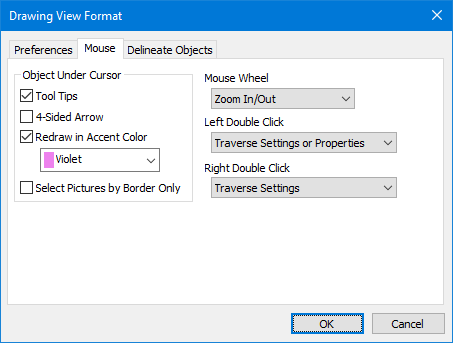
•Set the Mouse Wheel option to Zoom In/Out.
Zoom In and Zoom Out
•Choose View | Zoom | Zoom In or Zoom Out.
Zoom Window
•Choose View | Zoom | Zoom Window.
•Left click a corner of the area you want to zoom.
•Drag the mouse to the opposite diagonal corner. Drawing View draws a dashed rectangle to indicate the zoom area.
•Left click the other corner. Drawing View zooms and pans so that the zoom window fills the Drawing View window. If the shape of the zoom rectangle you selected does not match the shape of the Drawing View window, Drawing View extends one of the dimensions to fill the window.
If the zoom is exceptionally large (i.e. >500X), TPC will prompt you, telling you that the zoom is very large, which may result in a long regen time and will ask you to choose Yes to continue with the zoom.
Zoom Page
•Choose View | Zoom | Zoom Page.
Zoom Previous
TPC keeps track of your most recent zooms, allowing you to zoom in to check something, then zoom back out to where you were.
•Choose View | Zoom | Zoom Previous.
Zoom Points
•Choose View | Zoom | Zoom Points.
Any one who has used a CAD program knows how frustrating it is to zoom in on a tangle of point descriptions only to see a larger tangle. This is a common problem when you have lots of survey shots close together. Your only option in CAD is to resize the text to figure out what is what, then possibly change it back later.
The Zoom Points command toggles the zoom factor of the point labels, line annotations, line widths and point symbols between 1.00 and the current zoom factor of the drawing. Now when you zoom in on a tight cluster of points, turn off zoom points and Drawing View will draw these entities using a zoom factor of 1.00, making them easier to read and work with.
When you print the drawing, the zoom factor is set to 1.0 and Zoom Points has no affect on the printed output. Zoom Points is also turned On when you choose the Zoom Page command.
Zoom Points and Regen
When you choose Zoom Points, TPC only adjusts the zoom for drawing layers that have survey symbols, lines and text on them. The zoom factor on other layers, like the 0 layer, are not changed until you choose Regen.
This feature further enhances the value of the Zoom Points command. You can turn Zoom Points off, use other zoom commands like Zoom In, Zoom Window, etc. to check your survey without fighting
Zoom Extents
•Choose View | Zoom | Zoom Extents.
The Zoom Extents command works differently from the other zoom commands in that it actually changes the scale and position of the survey on the drawing.
Zoom Extents computes the extents of the survey, then scales it to fit entirely on one page.
Auto Extents
•Choose View | Zoom | Auto Extents.
Automatically recomputes the drawing extents as you enter new points allowing you to see new survey points are you create them.
Zoom Previous
As you zoom in and out, TPC remembers the previous zoom settings. You can back up to any of the previous zooms by choosing View | Zoom | Zoom Previous.
Temporary Drawings
When you open a Traverse View, TPC creates a temporary drawing in Drawing View to show the data in that traverse. When you close the Traverse View, TPC returns to your current drawing and picks up right where you left off with the zoom.
See Temporary Drawing.
Related Topics
Paper Space vs. Survey Space
Scaling a Drawing in Drawing View
Page Layout Mode
Using Drawing View
Drawing Commands
Editions
Personal, Premium, Professional
|

