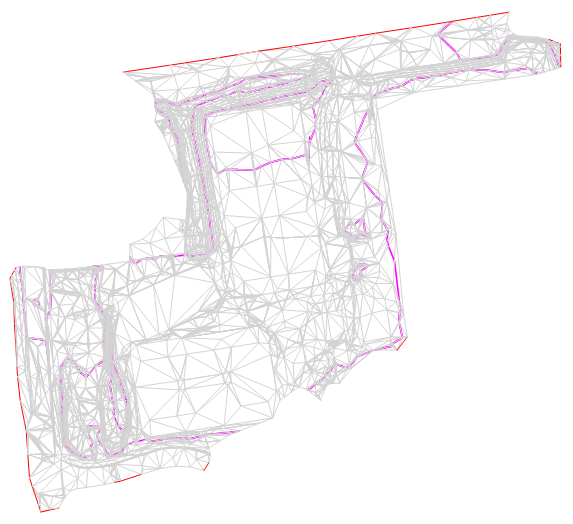
In TPC, surface exclusions are created by forcing triangles (faces) to be invisible. This is the convention used in LandXML and CAD polyfacemesh entities.
Surface Exclusions (7:27) - See how surface exclusions work in TPC and how to export them to CAD.
Editing Exclusions
In TPC, you edit exclusions by selecting triangles you want to become invisible or visible. You use the Edit Exclusions command to do this.
You can also tell TPC to exclude or include all the triangles within a traverse. TPC looks for any triangles that lie within the extents of the selected traverse(s) and includes or excludes them. You use the Get Exclusions from Traverse and Remove Exclusions from Traverse commands for this. You can also do this from the Exclusions dialog.
Applying Exclusions
Once exclusions are created for a surface, you can tell TPC to apply them or not to apply them.
•In the Exclusions dialog, select [x] Apply Exclusions in Surface to turn then on or off.
•In the Drawing View, right click a contour or tin line and choose Surface Tools, Exclusions, Apply Exclusions.
In the example below, we see that exclusions have been used to better model the outside border of the surface.
On the left, the exclusions are applied. On the right, they are not applied.
Apply Options
In the Exclusions dialog, you tell TPC which parts of the surface to apply exclusions to when you tell TPC to apply them.
Select from Contours, Volumes, Slope Analysis, Transects, Extents and Area.
Locking the Surface
Before you add exclusions to a surface, the surface must be locked. In a locked surface, the triangles used to generate the surface do not change. This allows TPC to retain information about which triangles are invisible.
TPC automatically locks a surface when
•When you add an exclusion to a surface
•You import a LandXML surface with invisible faces
•You import a CAD polyfacemesh with invisible faces
If you remove all exclusions from a surface, you need to manually un-lock it in the Advanced tab of the Surface Settings.
What do Exclusions Affect?
Any exclusions you add to a surface affect the following.
Areas
Areas excluded from a surface are also excluded from the surface's Plan and Surface areas.
Volumes
Areas excluded from a surface are also excluded from the surface's volume computations.
Slope Analysis
Areas excluded from the surface are also excluded from the surface's slope analysis.
Transects
Areas excluded from the surface are also excluded from the surface's transects.
LandXML
LandXML supports surface exclusions via invisible faces (triangles). If a LandXML face is invisible, it is excluded from the surface while visible faces are included.
This correlates directly with TPC's surface exclusions.
•When you import a LandXML surface with invisible faces, TPC excludes them automatically from the surface.
•When you export a TPC surface with invisible faces to LandXML, TPC makes those faces in visible to LandXML also.
CAD uses polyfacemesh entities to store surface data. Edges within these polyfacemeshes can be visible or invisible. If all three edges of a triangular face are invisible, that face is invisible. This correlates directly with TPC's surface exclusions.
Exclusions Dialog
The Exclusions dialog in Surface Settings gives you additional options for editing exclusions. It also lists the triangles that are currently excluded and the total number of triangles excluded.
Hiding Contours
In addition to excluding triangles, you can also hide contours beneath a traverse or drawn object like a rectangle, circle or polygon. See Hiding Contours With Fills.