A block is a drawing object comprised of other objects. They are used to define drawing objects that are repeated in the drawing or used often by new drawings. When you create a block, you actually create a block file that any other drawing can access.
Blocks Introduction (3:58) - See how you use blocks in TPC drawings. They are just DXF CAD blocks like you use in any CAD program.
Advantages of Using Blocks
•Reduces the size of the drawing file since each block occurs only one time
•Provides consistency, since all the block references use the same block
•Blocks can be scaled and rotated
•Effects global changes in a drawing since updating the block updates all the block references that draw it
Insert a Block
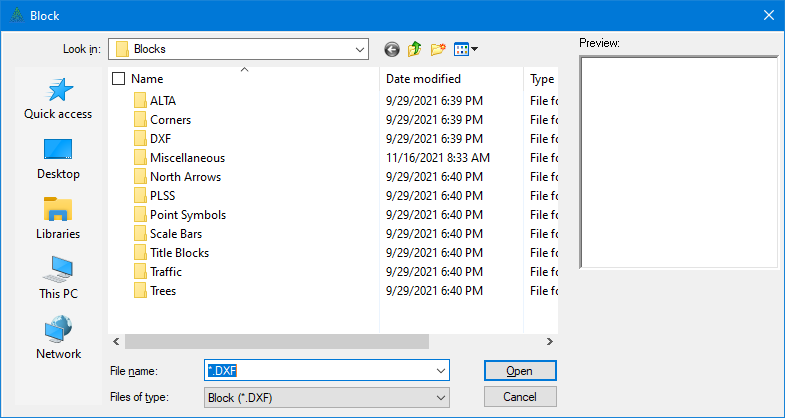
•From the Drawing View, choose Insert | Block. TPC displays the Block dialog.
•Select the block you want from the available folders. You are actually selecting a block file. When you highlight a block file, TPC displays the block in the Preview window.
•Choose Open to return to the drawing.
•Left click the insert position on the drawing. TPC draws the block at that position.
How Blocks are Stored
TPC organizes the blocks in folders, forming an Object Library. The folders make it easy to locate, store and reuse objects across drawings. By default, TPC stores just the block name and filename with the drawing, but you can store the blocks themselves with the drawings if you plan on sharing the drawings with someone else who may not have your blocks on their computer. For more information see Storing Blocks in the Drawing.
The blocks themselves are actually DXF files. When you create a new block, TPC writes out the DXF equivalent of the block file. This file becomes the permanent storage place for the block.
Filling Blocks
To include a filled block in a line type, you must fill the block with other objects like lines or polylines. Think of it as 'sketching in' the fill.
There are two exceptions to this:
1.If the block you are using has just one filled object TPC will use the fill from that object to fill the line type and you will get a filled block.
2.Filled circles are always filled, regardless of how many objects are in the block.
Including Text in Blocks
You can include text in a block. As a rule, you will want to used Center justified text to get the most accurate placement of the text within the block.
Single letters can be used in a block but you may need to save the block, adjust the text position and re-save the block go get the position correct.
TPC supports arc aligned text in blocks.
Block References
Blocks are not used directly in a drawing, but are referenced by another drawing object called a Block Reference. When you insert a block, you are actually inserting a block reference. When you create a block, you create and store the block, but you also create a block reference that displays the created block in the drawing.
Each block reference accesses just one block. If you need to combine blocks, you combine them into a new block and the block reference accesses the new combined block.
The block reference controls the way it displays the block in the drawing. It can rotate the block, scale it, make it a certain height, multiply its size by the drawing scale and force it to draw all in one color. To edit the block reference, right click the block and choose Properties. TPC will redisplay the block using the block reference properties. Even though the block may appear larger or rotated, the block has not changed - only the block reference has changed.
To change the block itself, you must edit the block. Once a block is edited, all the block references will display the changes.
Identifying Used Blocks in a Drawing
To identify which blocks are used in a drawing, expand the Blocks branch of the Drawing Data Manager. Each block used in the drawing is listed in the Blocks branch.
If you save your survey as a Shared Survey, TPC will include the block definitions in the trv file for all blocks that are used in the drawing.
Missing Blocks
If TPC is not able to find the block file used by a block reference in a drawing, it will not be able to draw the block.
However, TPC can show you which blocks are missing in the drawing so you can locate the block or replace it with another one. See Missing Blocks.
Deleting Unused Blocks
Often times, when working with CAD files, you end up with blocks in a drawing that aren't being used. These unused blocks add to the size of the survey file and the time it takes to save and open the survey.