

Changing drawing scales and sheet sizes shouldn’t mean starting over with your labels, symbols, and linework. Yet in many CAD workflows, that’s exactly what happens.
TPC takes a different approach with QuickView technology, helping surveyors manage drawing appearance without repeatedly adjusting individual elements every time a project changes.
The CAD Challenge: Changing Scale Changes Everything
Imagine finishing a subdivision drawing in CAD. The lot labels look good, linework is clear, and point symbols are easy to read. Then the project requirements change.
A client needs a detail drawing of three lots instead of the entire subdivision. The sheet size changes. The drawing scale changes. Suddenly, labels may be too large or too small, symbols crowd the drawing, and line widths no longer look right.
Now comes the extra work: resizing and adjusting drawing elements to make everything readable again.
For surveyors producing multiple drawings from the same project, these small adjustments can add up to unnecessary drafting time.
How TPC QuickView Makes Drawing Changes Easier
TPC QuickView technology approaches drawing appearance differently. Instead of basing label sizes, symbol sizes, and line widths solely on drawing units, TPC can define these elements using physical measurements, such as fractions of an inch.
Set the size once. Keep it consistent as the drawing scale changes.
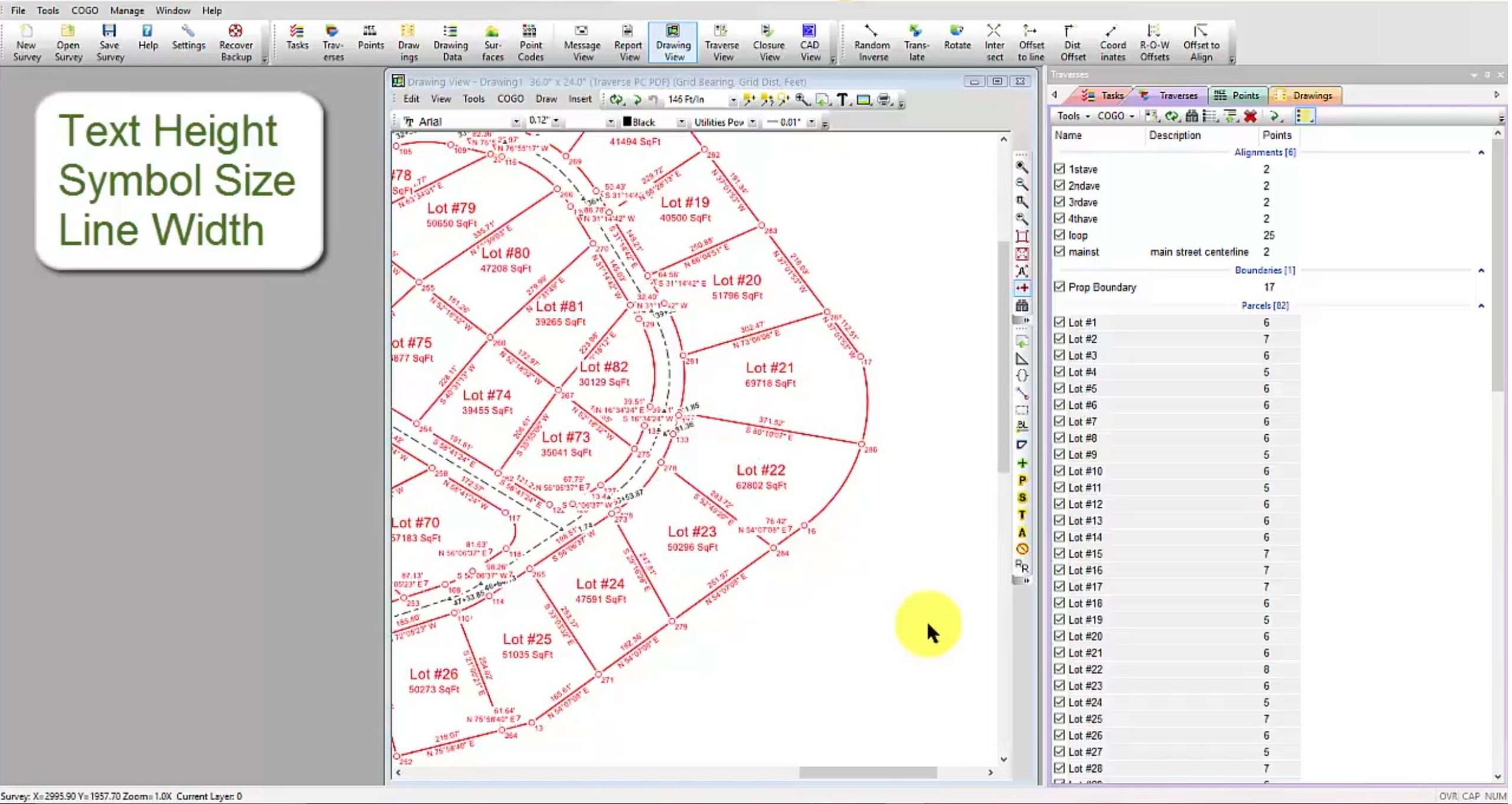
For example, a surveyor can set point labels and line labels to 0.08 inches on a 24-by-36-inch sheet. When creating a new drawing with a different scale or paper size, those labels retain their specified physical size.
The same principle applies to symbols and line widths.
The result? Less time spent correcting drawing appearance and more time focused on the survey itself.
A Real-World Example: From a Subdivision to a Lot Detail
Consider a subdivision project containing dozens of lots imported from LandXML.
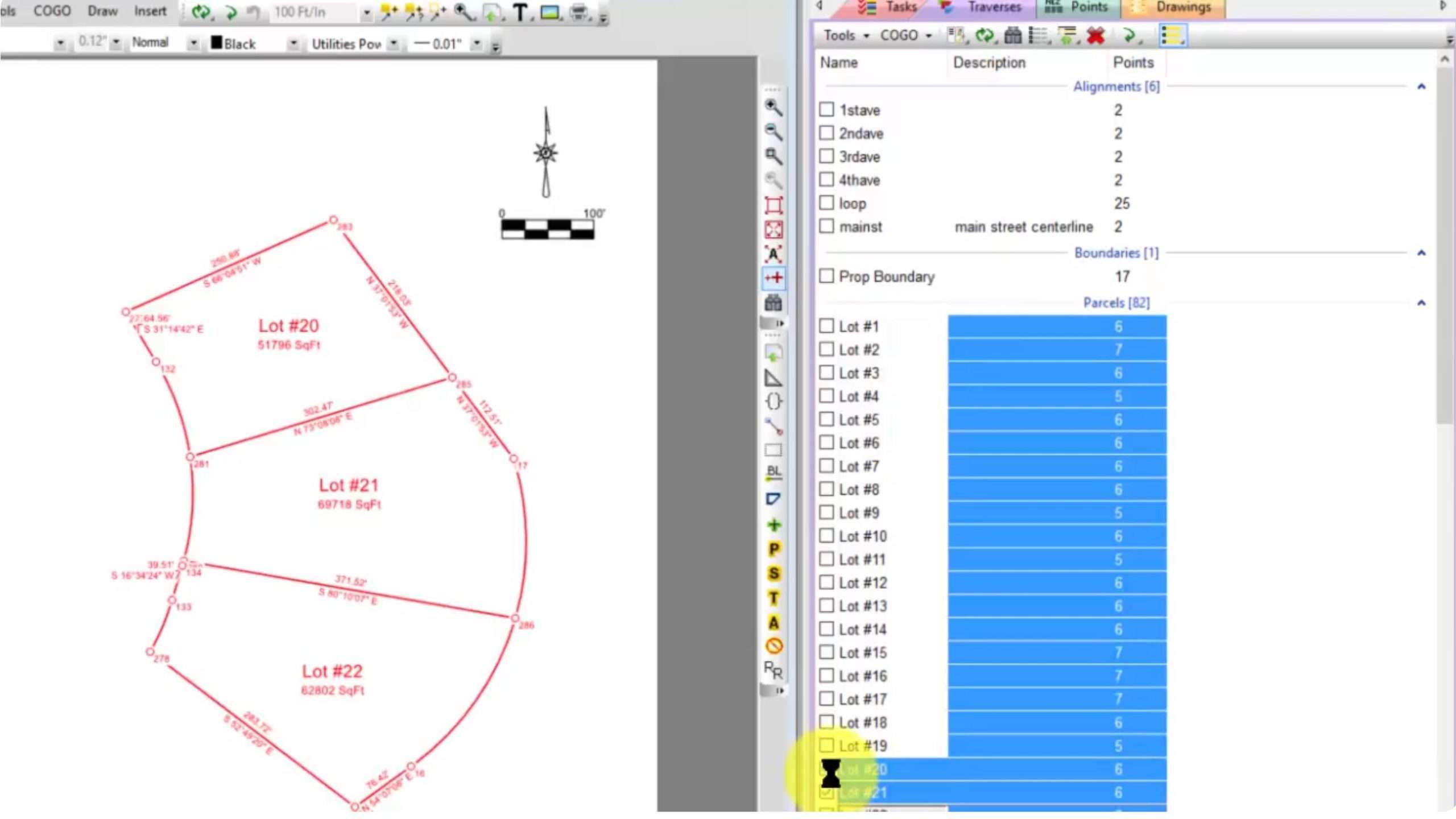
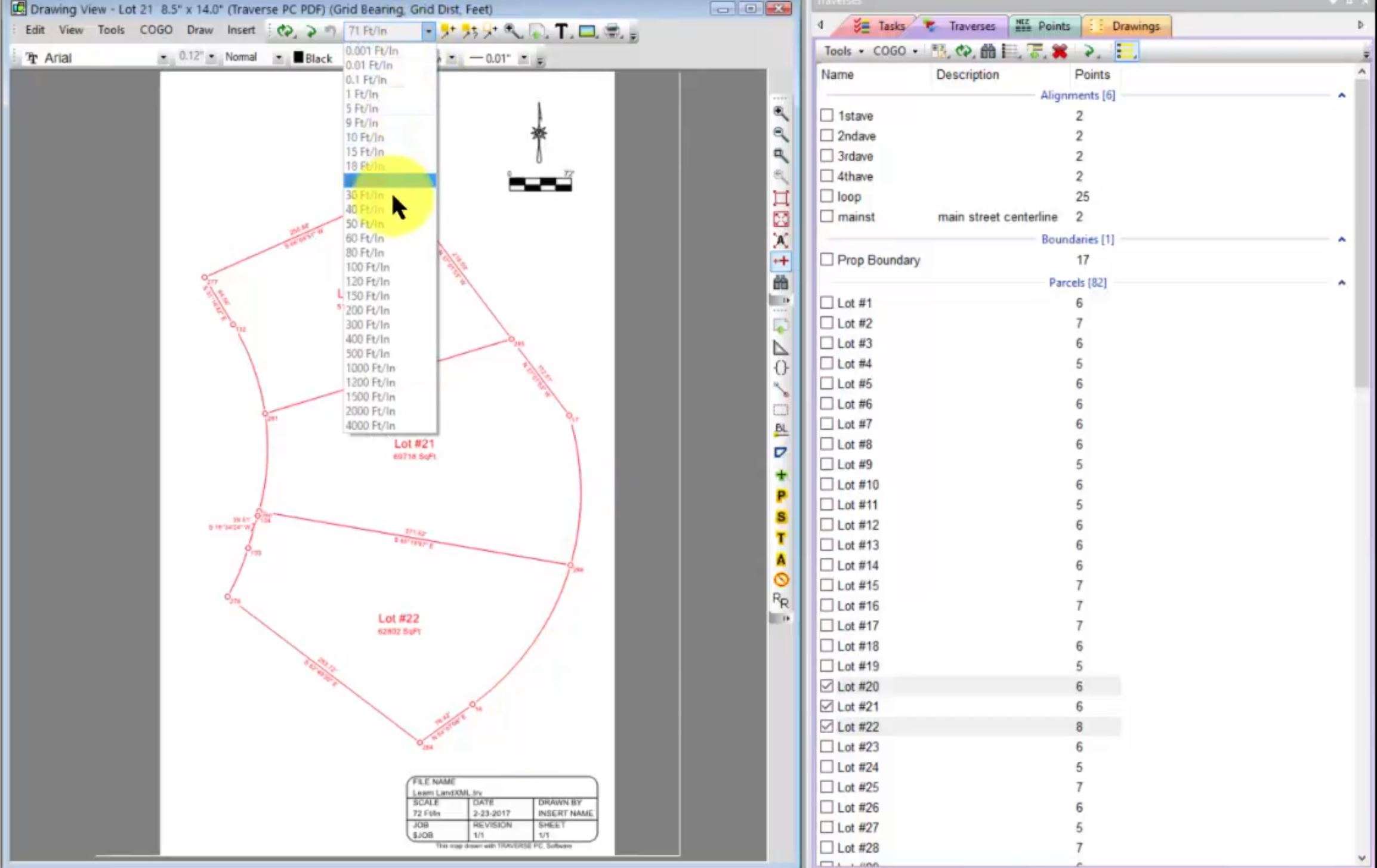
The full subdivision drawing is complete, but a client now needs a separate drawing showing Lots 20, 21, and 22.
Here’s how that workflow can look in TPC:
- Create a new drawing. Start a separate drawing for the selected lots using an existing template.
- Select the lots needed. Tag Lots 20, 21, and 22 rather than rebuilding the project from scratch.
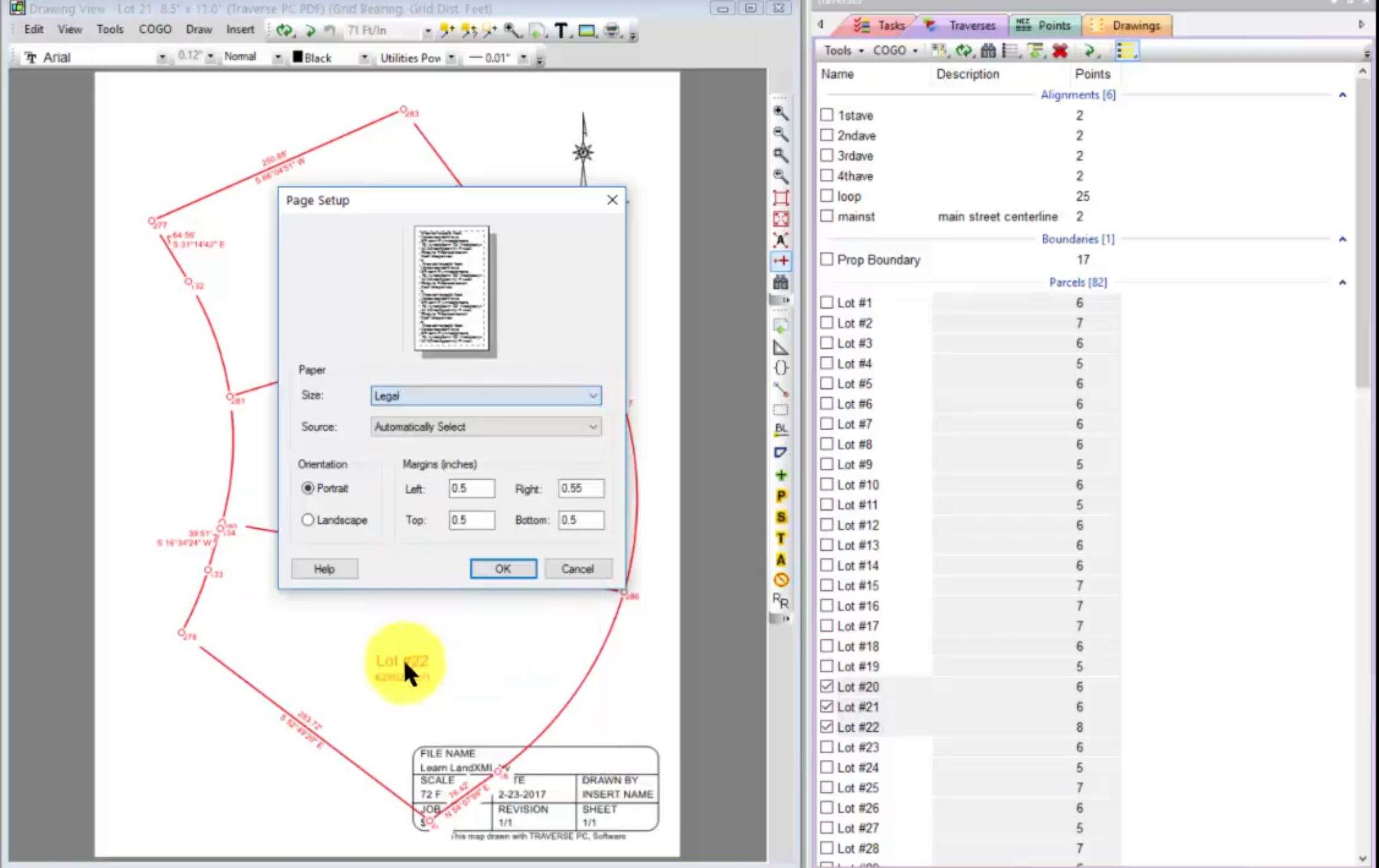
- Adjust the sheet size. Change the page setup from a 24-by-36-inch sheet to a legal-size sheet.
- Set the desired scale. Choose the scale that best fits the selected lots.
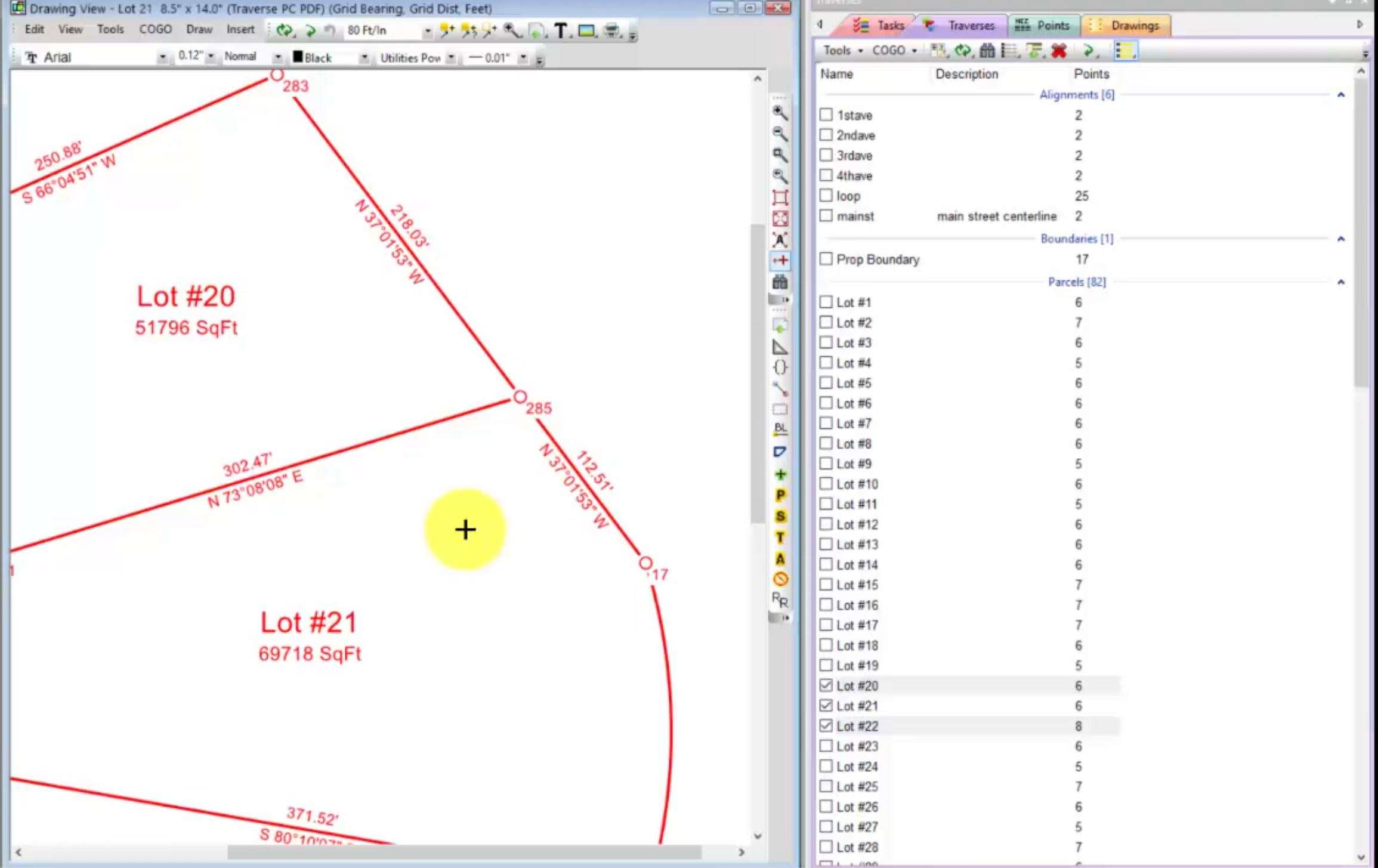
- Keep the drawing readable. Point labels, line labels, symbols, and line widths retain their specified physical sizes.
The drawing can be adapted to the new sheet and scale without manually resizing every label and symbol.
That’s a meaningful difference when producing multiple views, exhibits, and detail drawings from the same survey data.
Zoom In on the Data Without Enlarging Everything
TPC QuickView also offers control over how drawing elements respond to zooming.
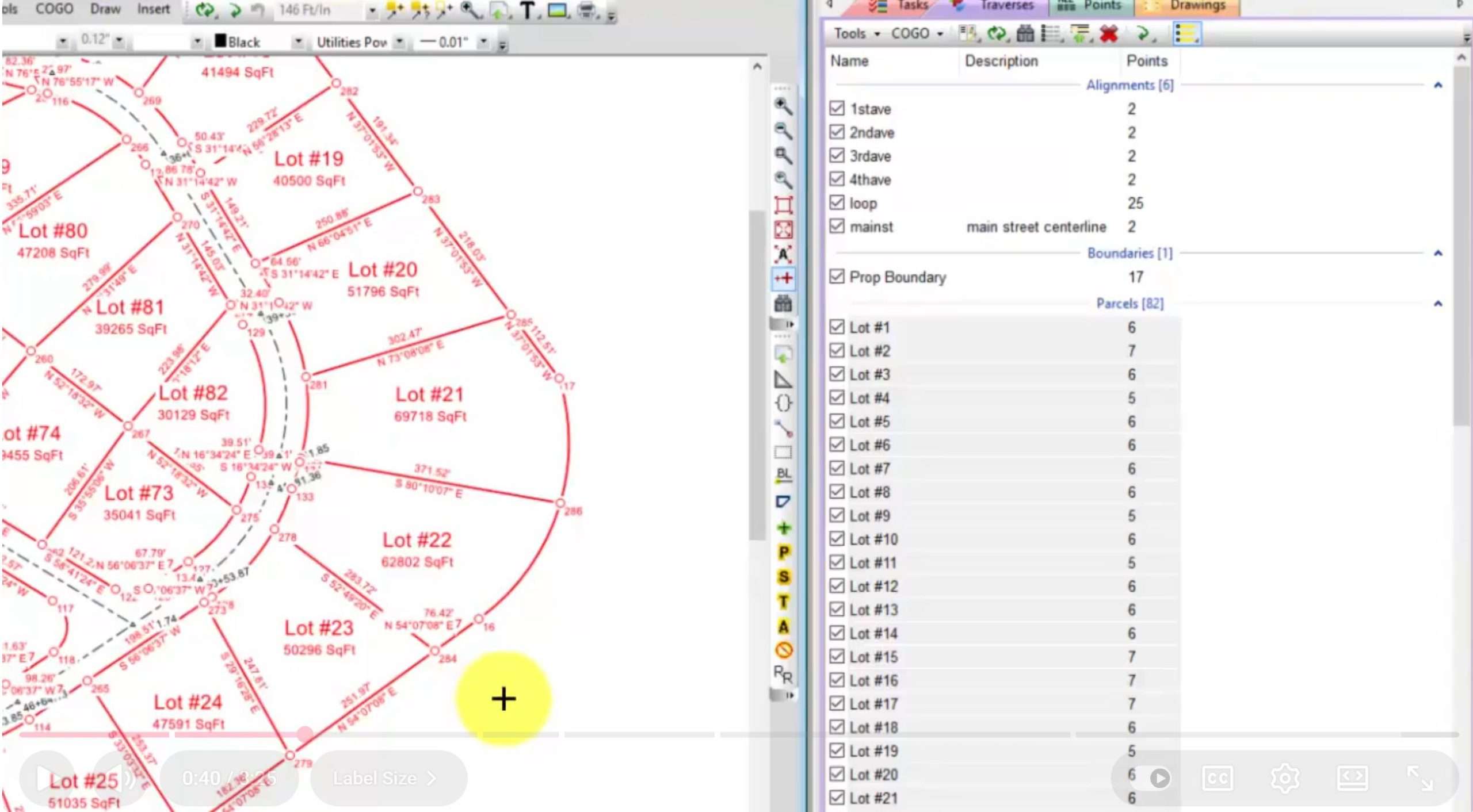
When working with dense survey data, overlapping points and symbols can make it difficult to inspect individual locations. TPC allows users to turn off zooming for point symbols, keeping them at their specified size while zooming into the data.
This makes it easier to inspect crowded areas without having symbols grow larger and overwhelm the view.
When needed, zooming can be turned back on for elements such as line widths, symbols, and labels.
You control the view without losing control of the drawing.
Why This Matters When Moving from CAD to TPC
CAD remains an important part of the surveying industry, and compatibility matters. TPC is designed to work with CAD-based workflows while offering tools built specifically around surveying.
QuickView is one example of that difference.
| Common CAD frustration | TPC QuickView approach |
|---|---|
| Resizing labels after changing scale | Maintain specified physical label sizes |
| Adjusting symbols for different sheet sizes | Keep symbol sizes consistent |
| Reworking line widths for different views | Maintain specified physical line widths |
| Overlapping symbols when zooming into dense data | Control whether selected elements zoom with the view |
Instead of spending time repeatedly correcting the drawing, surveyors can focus on the information the drawing needs to communicate.
See the Difference on Your Own Project
The best way to evaluate survey software isn’t to compare feature lists. It’s to see how the software handles a project already familiar to you.
Try importing a subdivision, creating a detail drawing, changing the sheet size, and adjusting the scale. Compare the work required to keep labels, symbols, and linework readable.
TPC combines survey-focused workflows with CAD compatibility, giving surveyors another way to approach everyday drafting challenges.
Explore more CAD-centered workflows in the TPC Learning Center
Take TPC for a 3-month test drive
